How to Generate a QR Code?

The use of quick response (QR) codes is common among businesses and marketers. They place them on business cards, billing counters, restaurant walls, and billboards for different purposes. Primarily, QR codes are used to make payments, connect to Wi-Fi, track a product or order, or open a website or menu. In this blog post, we will show you in detail how to generate a QR code for free.
Who Invented QR Codes and Why?
The first QR code was invented in 1994 by Masahiro Hara, an engineer working in Denso Wave, a famous Japanese company. At that time, the purpose of the codes was to make tracking of parts in inventory easier. Later, these codes became a technology that rapidly replaces traditional barcodes.
QR Codes vs Barcodes
The table below highlights the main technical differences between QR codes and barcodes.
| Feature | QR Code | Barcode |
|---|---|---|
| Code Type | Two-dimensional (2D) | One-dimensional (1D) |
| Data Storage Capacity | Up to 7,089 numeric characters, 4,296 alphanumeric characters, 2,953 binary bytes, or 1,817 Kanji characters | Usually 8 to 25 characters, depending on the barcode format |
| Storage Method | Stores data both horizontally and vertically | Stores data horizontally only |
| Error Correction | Built-in error correction (L, M, Q, H levels) allows scanning even if up to 30% of the code is damaged | No built-in error correction. Damage often makes the barcode unreadable. |
| Scanning Direction | Can be scanned from almost any angle (360°) | Usually requires proper horizontal alignment |
| Data Types Supported | URLs, text, phone numbers, email addresses, WiFi credentials, locations, contact cards, events, and more | Mainly product IDs, inventory numbers, and serial numbers |
| Scanning Device | Smartphone cameras, tablets, and online QR scanners | Laser barcode scanners, CCD scanners, and many smartphone cameras |
How to Generate QR Codes?
Generating QR codes is very easy. You simply need to use a QR code generator, input your details, and download your code. The steps vary slightly with the type of QR code you want to generate.
For your convenience, we are demonstrating the process for creating different types of QR codes using the QR generator at QRScanner.net.
How to make a QR code for a link?
To generate a QR code for a link:
Step 1. Open the QR code generator in your web browser. The homepage displays different QR code types at the top.
Step 2. Select the URL to make a QR code for a link.

Step 3. Type or paste the URL in the provided field.

Step 4. Design and customize your code if needed (all changes are implemented automatically in real time).
Step 5. Download or copy the embed URL of your QR code from the output.

How to create a Vcard QR code?
V-Card usually refers to a digital contact file. They often lead back to email addresses and are embedded inside QR codes.
Follow these steps to generate a Vcard QR code:
Step 1. Open the QR code generator and select VCard among the types.

Step 2. Fill in the content. Adding a name is a must; the rest are optional.
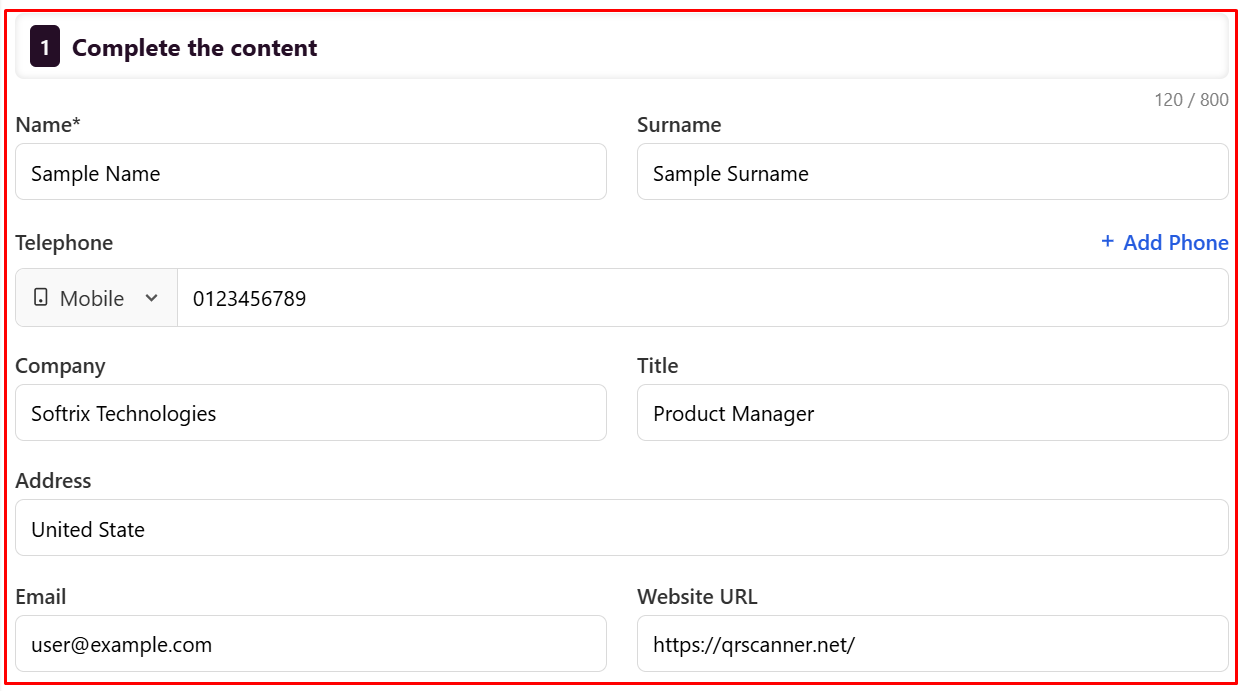
Step 3. Design and customize your code (optional).
Step 4. Download & copy the QR code to embed in the output.
How to create a QR code for text?
To create a QR code with simple text embedded inside:
Step 1: Open the QR code generator and select Text input.

Step 2: Type or paste your text inside the input box. Our QR code generator allows a maximum of 800 characters of input.
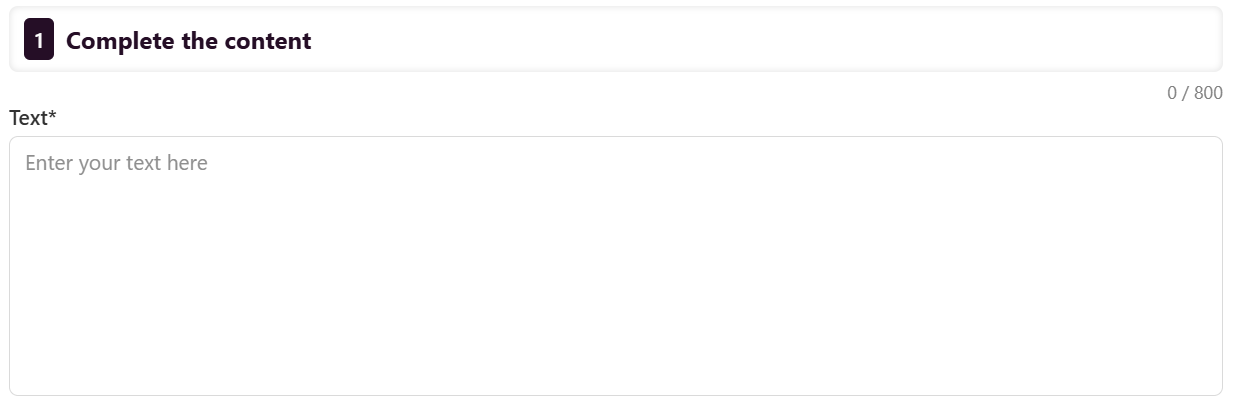
Step 3. Design & customize your code.
Step 4. Download your code as an image or copy the code to embed.
How to make a QR code for an email?
An email QR code lets people start writing an email without typing your email address manually. To create an email QR code:
Step 1. Open the QR code generator and select Email from the available QR code types.

Step 2. Enter your email address in the Email field. Then, add a subject and message (optional).
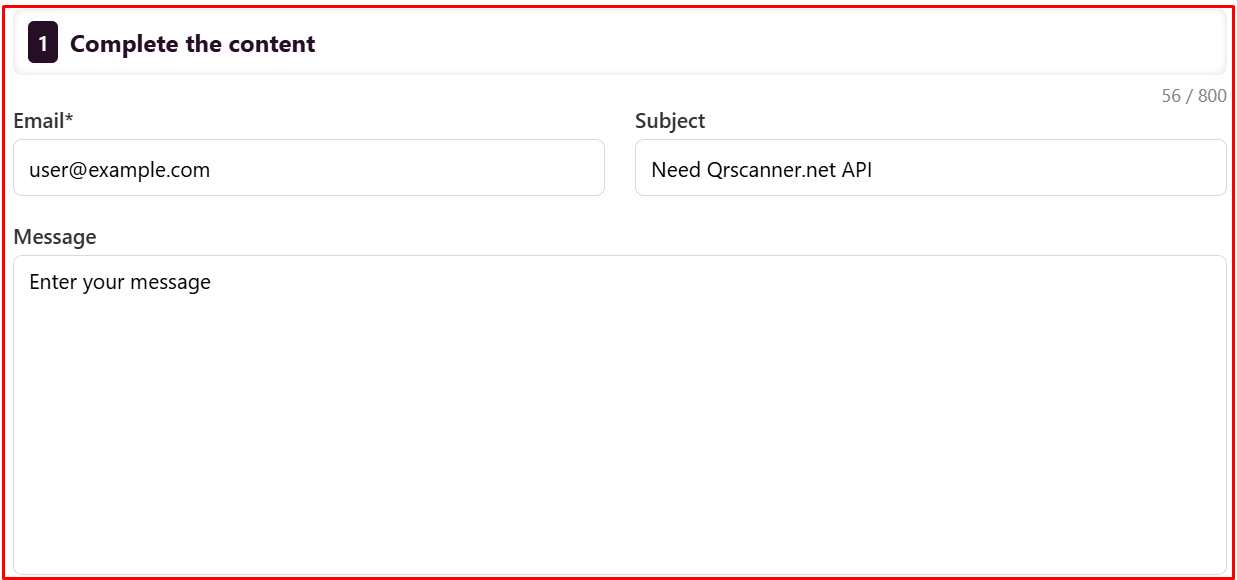
Step 3. Design and customize your QR code if you want to change its appearance.
Step 4. Download your QR code as an image or copy the embed code to use it on websites.
How to create QR codes for SMS?
An SMS QR code lets people open their messaging app with a phone number and a pre-written message already filled in.
To create an SMS QR code:
Step 1. Open the QR code generator and select SMS.

Step 2. Enter the recipient's phone number in the Phone Number field. Then, type the message you want to include in the Message box (if any).
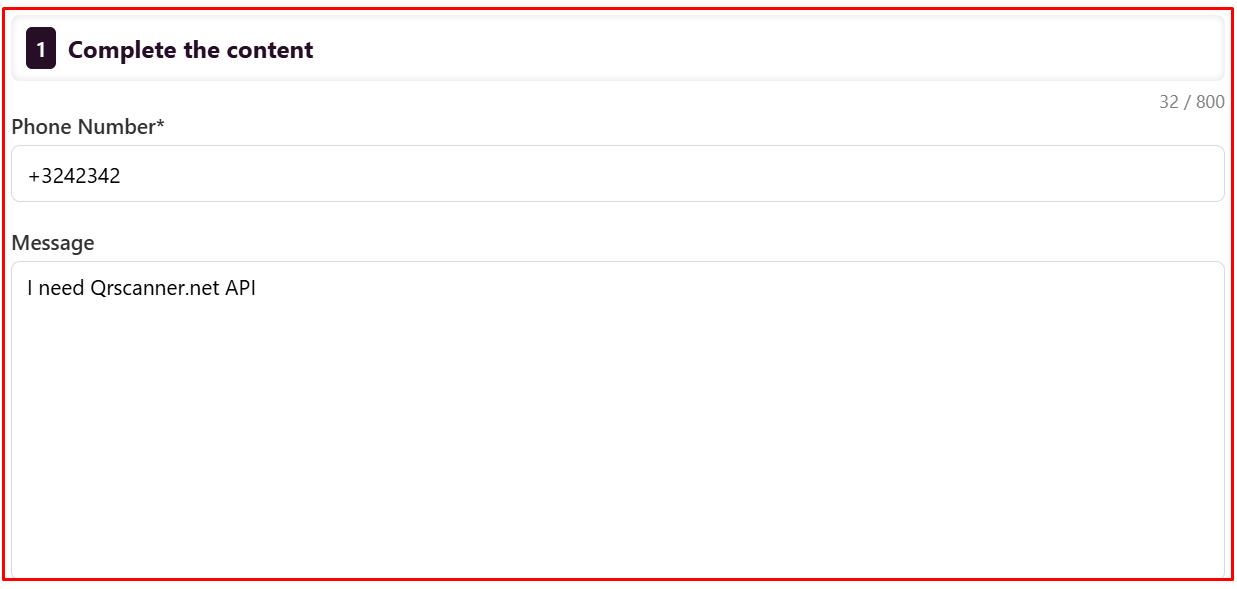
Step 3. Customize your QR code if you want to change its design.
Step 4. Download your QR code as an image or copy the embed code.
How to generate a WIFI QR code?
A Wi-Fi QR code lets people connect to a wireless network without typing the network name or password. They simply scan Wifi QR code and get connected to the network in seconds.
To create a Wi-Fi QR code:
Step 1. Open the QR code generator and select Wi-Fi among the types.

Step 2. Enter your Network Name (SSID) and Network Password. If your network does not use a password, leave the password field empty.

Step 3. Select your Encryption Type from the list. Choose one depending on your Wi-Fi security settings.
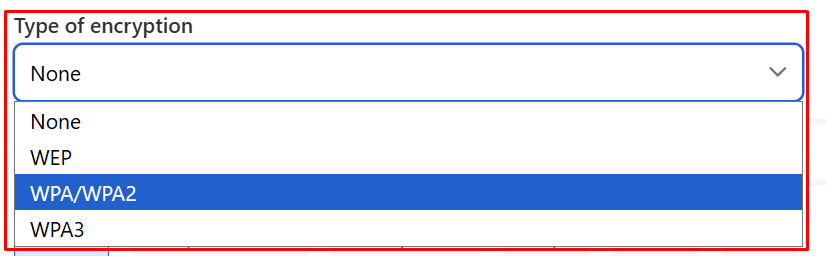
Step 4. If your Wi-Fi network is hidden, check the Hidden Network option.

Step 5. Customize your QR code if you want to change its design.
Step 6. Download your Wi-Fi QR code as an image. Or copy the code to embed it on a webpage.
How to make a QR code for Facebook?
A Facebook QR code takes people straight to your Facebook profile or page. Instead of searching for your account, they only need to scan the code.
Here is how to create one:
Step 1. Open the QR code generator and click Facebook.

Step 2. Paste your Facebook profile or page link into the Facebook URL field.

Step 3. If you want, customize the QR code by changing its colors or style.
Step 4. Download the QR code. Copy the embed code if you want to place it on a website.
How to generate a location QR code?
A location QR code helps people open a specific place on a map with a single scan. Follow these steps to create one:
Step 1. Open the QR code generator and select Location.

Step 2. Enter the Latitude and Longitude of the location in the required fields.

Step 3. Download the QR code or copy it to embed on websites.
All the above steps are demonstrated using the QR code generator by QRScanner.net. Whatever the type of QR code you are looking to generate, you must test it using QR Scanner before sharing in public or embedding on a website.
Conclusion
Using an online QR code generator, such as the one by QRScanner.net, is the easiest way to create QR codes for free. If you need to create a static QR code, open our QR code generator, choose the type you want, enter the details, and download your code as an image. You can also copy the code to embed into websites. After generating, you must test your QR codes using a QR scanner.
Related Blogs

How to Scan a QR Code on Android and PC
Learn our comprehensive guide on How to Scan a QR Code on Android and PC
What are Sample QR Codes for Testing - Different QR Solutions
Learn about what are Sample QR Codes for Testing - Different QR Solutions

QR Code Scams Are Getting Smarter - Stay One Step Ahead in Spotting Fake QR Codes
Learn how fake QR codes are used for phishing, malware, & payment fraud, and how to spot them before scanning.